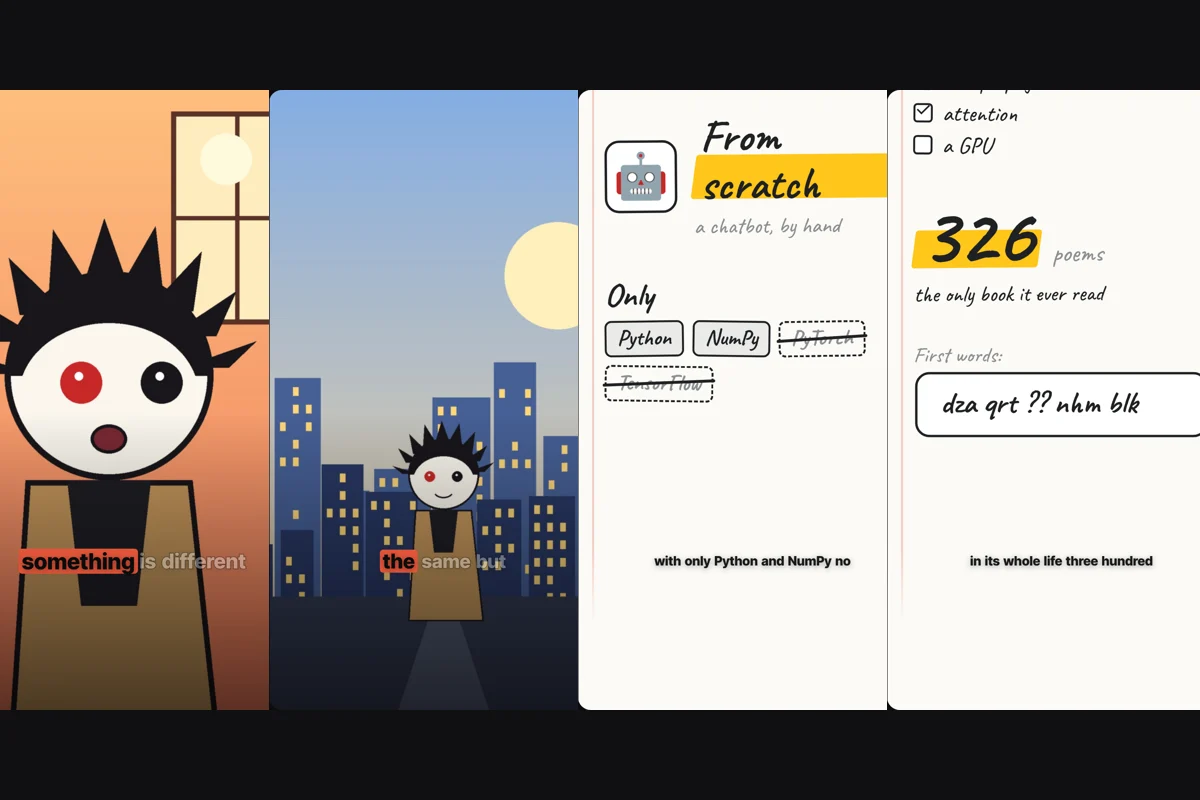
Some of the most-shared explainer reels never show a face. A voice tells a story, the sentence builds on screen word by word, a card appears for every point and a little cartoon character reacts along the way. They are quick to watch, easy to follow with the sound off, and they don't need a camera, a quiet room or a good hair day.
Narrated videos in SpliceReel make exactly that kind of reel. You bring the words, and an AI voice reads them. The reel is drawn around the voice.
What you get
Every narrated reel has the same building blocks. You can change each of them afterwards.
- The voice. A natural AI voice reads your script. Pick the voice that fits your channel: calm, energetic, deep or bright.
- The sentence, building. What is being said appears large at the top of the frame. Each word lights up as it is spoken, and the key words are picked out in your accent colour. It does the job of captions, so the video works on mute.
- Chapters. A strip names each part of the video, like
// 01 — the hookand// 02 — myth one, so viewers always know where they are and how much is left. - A card for every line. The AI chooses the card that shows each line instead of repeating it. A number counts up. A before and after splits in two. A list ticks itself off. A prompt types itself into a terminal. A surprising line gets a reaction sticker.
- A presenter, if you want one. A cartoon character stands at the bottom of the frame and acts the script out: pointing at a card, thinking, amazed, cheering.
- Pictures and music. Optional illustrations for the things you mention, background music, and a light paper look or a dark night look.
Step 1: write a script that works out loud
Open Scripts in your dashboard. Write your own, or describe your idea and let SpliceReel write one for you.
A script for a narrated reel is not an essay. A few rules make a big difference:
- Open with the claim, not the context. "Your reels don't stall because of the algorithm" beats "Today I want to talk about reach."
- One idea per sentence. Each sentence becomes a card, so a sentence that says two things gets a crowded card.
- Number your points. "Myth one… myth two…" or "Step 1… step 2…" gives the chapters something to name and the viewer a reason to stay.
- Say numbers the way you would write them on screen. "Three posts a week" becomes a clean card; "a few times weekly" does not.
- End with one clear ask. "Comment START and I'll send you the checklist" becomes a call-to-action card at the end.
About 150 words make a minute of video. For most reels, 60 to 120 words is the sweet spot.
Tip: with an expressive voice, tags in square brackets set the mood of a line, such as [excited], [whispers] or [laughs]. The voice performs them and they never appear on screen.
Step 2: pick a voice, a presenter and a look
Below your script, open Narrate with an AI voice and choose:
- The voice. Listen to a few and pick the one that sounds like your channel.
- A presenter, or none. A presenter is made once and reused in every narrated video.
- The look. Paper (light) or Night (dark).
- Illustrations and music, if you want them.
You see the full price before anything starts: the voice, the edit and the illustrations.
Making your presenter
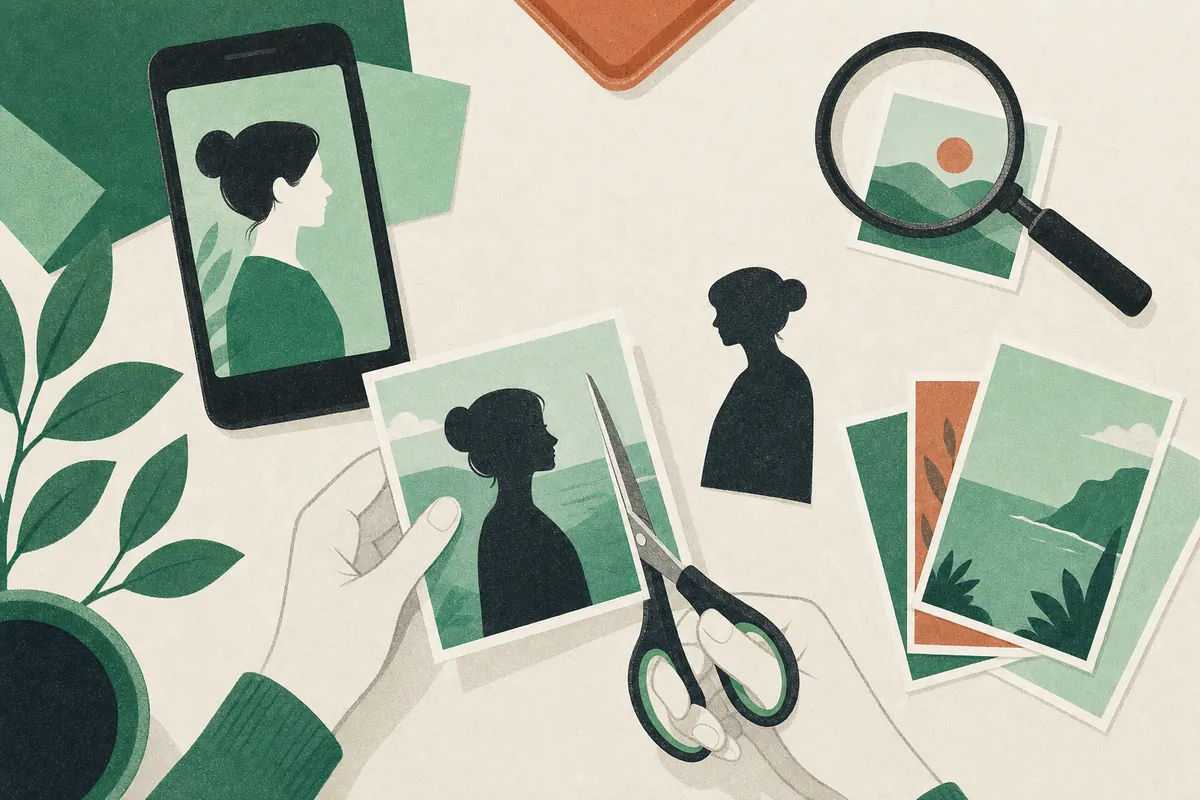
Under Presenters on the same page, describe your character: "a young woman with short red hair, round glasses and a green jacket, cheerful." For a character that looks like you, pick a photo of yourself from your media library. SpliceReel draws the character six times, talking, pointing, thinking, amazed, cheering and presenting, keeping the same face, hair and clothes in every pose.
When the AI writes your first cut, it decides when the presenter changes pose. They point when a card arrives, stroke their chin at a myth, and their jaw drops at a surprising number.
Step 3: check the first cut and export
The voice is recorded and the first cut is ready in a couple of minutes. You can leave the page while it works. It opens in the same editor as any other video:
- Change any card in Scenes: its type, words and timing.
- Ask the AI chat for changes, like "make the third card a comparison" or "add a card listing the three steps".
- Switch the look or the music in Style.
- Move the presenter left or right, or make it bigger, in Presenter.
Then press Export for a vertical MP4, ready for Reels, TikTok and Shorts.
An example: a 30-second myth-buster
Here is how a short script turns into a reel:
| Time | What is said | What is on screen |
|---|---|---|
| 0:00 | "Your reels don't stall because of the algorithm." | // 01 — the hook. The sentence builds; the presenter points. |
| 0:05 | "Myth one: you have to post every day." | // 02 — myth one. A quote card; the presenter thinks. |
| 0:10 | "Three good posts a week beat seven rushed ones." | A comparison card, with 3 good winning over 7 rushed. |
| 0:16 | "You need a hook, one idea and a clear ask." | A checklist ticks off all three. |
| 0:24 | "Myth three: you need a camera. This video didn't use one." | A "Wait, what??" sticker; the presenter is amazed. |
| 0:28 | "Comment START and I'll send you the checklist." | A call-to-action card types START; the presenter cheers. |
You write six sentences. Everything in the right-hand column is made for you.
Frequently asked questions
Do I need a microphone or a camera?
No. You write and an AI voice reads it. That is the whole point.
Can I use my own voice instead?
Yes, by recording yourself. Read your script on the SpliceReel teleprompter, and the take is edited like any video, with the same cards and captions.
What languages are supported?
The voices speak most major languages, including English, French, Spanish, German, Portuguese, Italian and Arabic. Write the script in the language you want to hear.
What does it cost?
You pay for the voice by the length of the script, the edit by the minute like any video, and illustrations if you want them. A presenter is a one-off price and reused for free. You see the full price before anything starts. Narrated videos use bought credits; the free sign-up credits are for editing your own footage. If the voice cannot be made, nothing is charged.
Can I change the words after the video is made?
You can change everything on screen in the editor. To change what is said, edit the script and narrate it again.
Ready to try it? Open Scripts in your dashboard, or see more on the Narrated videos page.